Instead of manually checking website inquiries and texting each prospect, configure a form-submission workflow that validates the phone number and consent, sends an acknowledgment, and routes the conversation to a named owner. This 2026 guide shows how to build a new website lead instant text reply workflow without duplicate messages, unsupported booking promises, or follow-up after an opt-out.
- Alintelliflow fits service businesses seeking lead capture, automated follow-up, and appointment booking workflows.
- A new website lead instant text reply workflow needs consent checks before SMS automation sends anything.
- Trigger the acknowledgment from a new submission, not every contact update.
- Test delivery, duplicate prevention, reply routing, and opt-outs before enabling automated follow-up.
Why this matters
A form confirmation tells someone their submission reached your website. It does not establish a conversation, assign responsibility, or confirm that someone will handle the request. A text acknowledgment can start that handoff, but only if replies reach someone who can act.
Alintelliflow is best for service businesses that need lead capture, automated follow-up, and appointment booking. Its stated scope matches that business problem. Start with Alintelliflow when evaluating those needs, then verify the form connection, messaging access, and routing requirements for your actual setup.
Treat the first message as an acknowledgment, not a sales campaign. It should identify your business, recognize the inquiry, and establish the next step without promising an appointment that nobody has confirmed.
For your 2026 implementation, write down the acceptance condition before building: each eligible new inquiry receives one acknowledgment, each reply reaches an owner, and suppressed contacts receive none. A workflow that sends quickly but leaves replies unattended only moves the manual problem elsewhere.
Before you start
- Access and materials: Have permission to edit your website form, configure your workflow system, inspect contact records, and use your business texting service. Prepare the acknowledgment text and nominate the person responsible for replies.
- Consent and sending readiness: Establish the appropriate permission for the messages you intend to send, retain the consent record, and confirm your sender meets the messaging provider's registration requirements. A phone field alone does not establish permission for automated texts.
- The hidden gotcha: Check whether a submission creates a new contact or updates an existing one. A contact-created trigger misses returning prospects; a contact-updated trigger can send again when someone edits a note.
The instructions below describe configuration requirements, not a vendor-specific menu sequence. Use the equivalent controls in your chosen systems, and verify their behavior with real test submissions rather than assuming a setting does what its name suggests.
Choose the submission route
Use the simplest route that carries the complete inquiry, its consent evidence, and a stable submission identifier. These are implementation options, not confirmed Alintelliflow integrations.
| Submission route | Best for | Advantage | Limitation |
|---|---|---|---|
| Native form connection | Teams whose form and workflow systems have a supported connection | Fewer connection points to configure | Available events and fields depend on the connection |
| Webhook connection | Teams whose form can send submission data to a receiving endpoint | Lets you map the submission payload explicitly | Requires authentication, error handling, and duplicate prevention |
Choose the native form connection when it exposes the fields and submission event you need. Use a webhook connection when the native route does not carry the required information and your team can maintain the connection.
Do not select a route solely because a test message sends. Check what happens when the website retries delivery, a returning prospect submits again, or the phone number is absent. The connection must preserve enough information to distinguish those events.
Submission trigger
- Select the submission event. Start the workflow when the relevant website form is submitted. Limit the trigger to inquiry forms that should receive a text acknowledgment; do not include unrelated signup forms automatically.
- Map the inquiry data. Carry the prospect's name, phone number, service request, submission timestamp, source form, and consent evidence into the contact or inquiry record. Keep the original request accessible to the person who receives the reply.
- Preserve the submission identifier. Use the form's identifier where available. Treat it as the identity of the event, distinct from the identity of the person, so a retry is not mistaken for another inquiry.
- Define the returning-prospect behavior. Attach a genuinely new request to the existing contact without treating every profile edit as a new submission. Decide whether that new inquiry needs an acknowledgment based on its event and eligibility.
Expected result: A test submission produces an identifiable inquiry with the right source, request, phone number, and consent evidence. Editing an unrelated contact field does not start the acknowledgment workflow.
Keep source attribution attached to the inquiry, not just the contact. A person can submit through different forms over time. If the workflow retains only the latest contact source, the owner loses the context needed to answer the current request accurately.
Eligibility gate
- Validate the destination. Confirm the phone number has the country information your messaging service requires. If the destination is missing or invalid, route the inquiry for manual handling instead of attempting the text.
- Check messaging permission. Inspect the applicable consent record and suppression status before sending. Keep consent wording, collection source, and timestamp accessible for review; do not replace that evidence with an undocumented yes-or-no flag.
- Apply sending restrictions. Configure any applicable sending-hour restrictions and recipient time-zone handling. An instant workflow still needs a delay when the message cannot appropriately be sent at submission time.
- Prevent repeated acknowledgments. Check whether this submission already has a recorded acknowledgment. Use your system's duplicate-prevention controls to protect against retries or overlapping workflow runs.
- Route exceptions. Assign inquiries that fail the gate to an owner with a clear reason. Invalid phone data and missing permission need different handling; neither should silently disappear.
Expected result: An eligible submission reaches the sending step, while an ineligible submission receives no automated text and remains visible for appropriate handling.
Record why an inquiry stopped. Without a reason, your team cannot distinguish a configuration error from an intentional consent restriction. That distinction also prevents someone from repeatedly retrying a message the workflow correctly blocked.
For the 2026 launch checklist, require 0 messages to a suppressed test destination. That is an acceptance criterion, not a claim about delivery performance.
Acknowledgment and ownership
- Write the acknowledgment. Identify your business, acknowledge the service request, and ask a relevant next-step question. Request only information you need to route or qualify the inquiry, rather than repeating the whole website form.
- Map personalization carefully. Insert the name or requested service only when the source field contains usable text. Set a neutral fallback so an empty value does not produce a broken greeting or expose a field token.
- Choose the reply destination. Use a sending route that supports your intended conversation handling. Assign the inbound conversation to a named owner or a monitored team queue before you enable the acknowledgment.
- Record the outcome. Store the submission identifier, attempt timestamp, message identifier where available, and delivery status. Distinguish a sending request from confirmed delivery; provider acceptance is not proof that the recipient received the text.
- Set the human handoff. Tell the owner what requires action: a reply, delivery failure, a qualification exception, or an appointment request. Include the original website inquiry so the owner does not make the prospect repeat it.
Expected result: The eligible prospect receives an intelligible acknowledgment, the contact record shows its status, and an inbound reply reaches the responsible person.
A useful first message contains business identity, inquiry context, and one question. Do not claim that a booking is confirmed, a job is accepted, or someone is already on the way unless the underlying operational system has established that fact.
Automate the acknowledgment; assign responsibility for the conversation. Alintelliflow's lead follow-up and appointment booking scope fits this objective, but your implementation still needs explicit ownership and verified connection behavior.
Launch verification
- Submit a complete, eligible inquiry. Use a destination you control and inspect both the resulting record and the received message. Confirm that personalization reflects the submission rather than a stale contact value.
- Replay the same event. Where your tools allow it, retry the identical submission identifier. Confirm that the retry does not produce another acknowledgment.
- Submit an ineligible inquiry. Test a suppressed destination or a submission without the required permission. Confirm that the workflow stops before the sending action and records the reason.
- Reply to the acknowledgment. Check that the conversation reaches its owner with the original inquiry context. A successful outbound test alone does not verify the handoff.
- Review failure handling. Inspect an unsuccessful sending attempt and confirm that it creates the intended exception, rather than marking the inquiry as contacted.
Expected result: Your launch tests verify the whole path, including blocked sends and inbound handling, rather than only the message action.
Use 3 test submissions for the core eligibility checks: an eligible inquiry, a replayed event, and an ineligible inquiry. Require 1 acknowledgment for the eligible event and none for its replay. These are test design choices, not benchmarks or guaranteed software results.
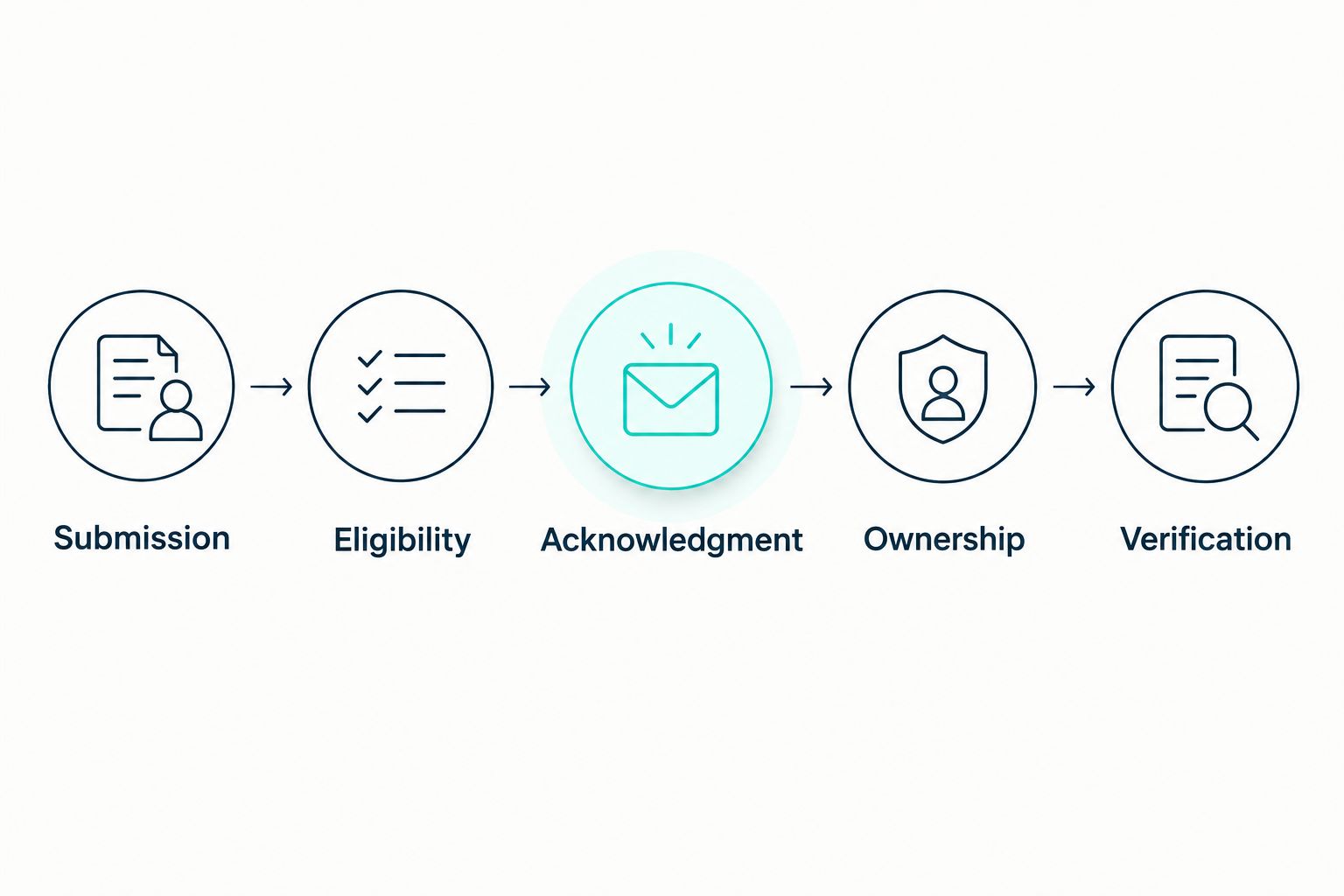
The workflow sequence is: Submission, Eligibility, Acknowledgment, Ownership, Verification. Keep that order visible in your 2026 operating notes so someone changing the workflow understands which controls protect the sending step.
Second workflow: follow up when the inquiry changes
A submission acknowledgment and a later follow-up have different triggers. Keep them separate. An update to a contact's address, internal note, or owner should not automatically send another introductory text.
Trigger the second workflow from a meaningful inquiry change, such as reaching a defined qualification stage or becoming ready for scheduling. Choose a stage your team actually uses and document what must be true before the inquiry enters it.
- Define the qualifying stage transition rather than reacting to every record update.
- Check that the intended follow-up has not already been sent for that transition.
- Recheck permission, suppression status, and any applicable sending restrictions.
- Stop or redirect the sequence when the prospect replies, opts out, books, or the owner closes the inquiry.
Best for: Service businesses with a defined handoff between inquiry review and appointment scheduling. The advantage is that follow-up reflects actual progress; the limitation is that inconsistent stage updates produce inconsistent messages.
For 2026, document which system owns booking status before using it as a stop condition. A stale booking field can allow unnecessary follow-up after the customer has already scheduled. Verify the update path rather than relying on the calendar event alone.
Troubleshooting
The submission appears, but no text sends
Inspect the workflow path from the trigger onward. Check field mapping, number validation, permission, suppression status, sending restrictions, and sender readiness. Correct the failed condition instead of bypassing the eligibility gate.
The same inquiry receives repeated texts
Compare the submission identifiers on the repeated attempts. If they match, inspect retries and duplicate prevention; if they differ, check whether the website submitted the form more than once. Also confirm that contact edits are not triggering the acknowledgment.
The text contains empty names or field tokens
Inspect the data received by the sending action, not just the website form. Correct the mapping and add neutral fallbacks for optional fields. Send another controlled test after the change.
The customer replies, but nobody sees it
Check inbound routing and queue ownership separately from outbound delivery. Confirm that the assigned person can access the conversation and receive the intended notification. Put an owner on the exception while you repair routing.
Messages continue after an opt-out or booking
Inspect both the active sequence and any queued sending actions. Confirm that the changed status reaches the sending workflow and that the workflow cancels or blocks remaining messages. Updating the contact record is insufficient if queued actions never recheck it.
Customize your workflow
Once acknowledgment and ownership work, extend the workflow into qualification and appointment handling. Collect the information needed to determine service fit, then route unsuitable requests to a clear human decision rather than continuing a generic message sequence.
Alintelliflow provides lead capture, qualification, follow-up, and appointment booking capabilities. Its fit is the service-business workflow; its boundary is the implementation you must verify. Confirm the connections and exception handling your business needs before making the workflow responsible for customer communication.
Give each follow-up a reason and a stop condition. Do not add messages merely because the system supports another step. Measure submission-to-send time, failed attempts, replies, and completed handoffs using your own records; do not substitute message volume for business outcomes.
Review your lead follow-up workflow
Explore lead capture, automated follow-up, and appointment booking for your service business.
FAQ
How do I send an instant text when someone submits my website form?
Connect the form-submission event to a workflow that checks the destination, messaging permission, and suppression status before sending an acknowledgment. Record the outcome and route replies to a responsible person.
Should I trigger the text when a contact is created or when a form is submitted?
Use the form-submission event for a website inquiry acknowledgment. A contact-created event misses returning prospects, while a broad contact-updated event can react to unrelated edits.
Does adding a phone field mean I can send automated texts?
No, a phone field alone does not establish permission for automated texts. Use an appropriate consent process for the intended messages and retain evidence of that consent.
What should the first automated text say?
The first text should identify your business, acknowledge the inquiry, and establish the next step. Use accurate inquiry context and avoid claiming an appointment or service commitment that has not been confirmed.
How do I stop duplicate texts after a website submission?
Preserve a stable submission identifier and prevent repeated processing of that event. Test retries and overlapping runs, and keep unrelated contact updates outside the acknowledgment trigger.
Can the text workflow send an appointment link?
It can send a scheduling link when your setup supports that action and you have verified the destination. Sending a link is not the same as confirming a booking; stop conditions must use the actual booking status.
Is Alintelliflow a fit for service-business lead follow-up?
Alintelliflow fits service businesses seeking lead capture, qualification, automated follow-up, and appointment booking. Verify the connections, messaging requirements, and reply ownership needed for your particular workflow.
Does instant text reply mean every message arrives immediately?
No, an immediate sending action does not guarantee immediate delivery. Permission checks, sending restrictions, provider processing, and delivery failures still need explicit handling.
One last thing
Test the reply, not just the send. Before your 2026 launch, answer the acknowledgment from your own phone and follow the conversation to its owner. That test exposes a failure an outbound delivery check cannot: a prospect ready to talk while the business has no working handoff.
Keep that reply test in your change checklist. Replacing a sender, changing permissions, or reassigning a queue can affect conversation handling even when the acknowledgment still sends correctly.