
Instead of manually copying caller details into your CRM, connect your AI receptionist to a verified integration route that finds the right contact, records the inquiry, and assigns the next action. For AL IntelliFlow, confirm the supported connection method first, then use this 2026 workflow blueprint to map fields, prevent duplicates, and test lead sync before enabling follow-up.
- To connect ai receptionist to crm, verify the connection method before configuring lead sync.
- AL IntelliFlow serves service businesses that need lead capture, follow-up, and appointment booking.
- Find existing contacts before creating records; keep each new inquiry separate from contact identity.
- Test new leads, returning contacts, and incomplete details before enabling automated follow-up.
Why this matters
A captured inquiry is not a finished handoff. Your team still needs a usable contact record, the customer's request, and a clear owner for the next action.
AL IntelliFlow is best for service businesses that need lead capture, follow-up, and appointment booking. Its lead and workflow software addresses those tasks; your CRM connection must preserve the information your team needs to act on them.
Keep the initial workflow narrow. Send lead information into the CRM, verify the result, and only then connect downstream actions. A connection that creates a contact but leaves the inquiry unassigned has not completed the business process.
Before you start
- Access: Have authorized access to AL IntelliFlow, your CRM, and any integration service required by the supported connection method. Confirm who can authorize connections and change CRM fields.
- Materials: Prepare your CRM's required fields, contact-matching rule, owner assignment, and follow-up rules. Use fictional test details rather than real customer information during setup.
- The gotcha: Decide what happens when a returning caller already exists in the CRM. A create-only workflow produces duplicate contacts, while an unrestricted update can overwrite information your team has already verified.
Before building your 2026 connection, verify which integration routes and lead events your accounts actually support. Use the available setup instructions for exact interface labels; the instructions below describe configuration decisions, not undocumented buttons or menus.
Connection route and lead event
Verify the supported route
- Identify the connection method available for your accounts. This means checking whether the product supports your CRM directly, exposes a usable event through an integration service, or offers a documented API or webhook route.
- Confirm that the route carries the lead details you need. Check for contact information, inquiry content, qualification answers, and appointment information where those details are captured.
- Authorize only the access needed for the workflow. Confirm that the connection can search records and perform the writes your chosen process requires.
- Choose the event that starts the handoff. Use an event whose data is ready for CRM entry, rather than an earlier event that still lacks the customer's details.
- Retrieve a test event and inspect its contents before mapping anything. Keep a sample of the incoming data so you can compare it with the final CRM record.
Expected result: You have a supported route, an authorized destination, and a sample event containing the information your workflow requires.
Do not assume that a connection named for your CRM supports every action. Contact creation, contact search, inquiry logging, and appointment updates are separate capabilities. Verify each action your workflow needs.
Define the handoff boundary
Decide exactly what lead sync owns. For the initial setup, make the CRM the destination for the contact, inquiry, and assigned next action; leave unrelated business processes outside the workflow.
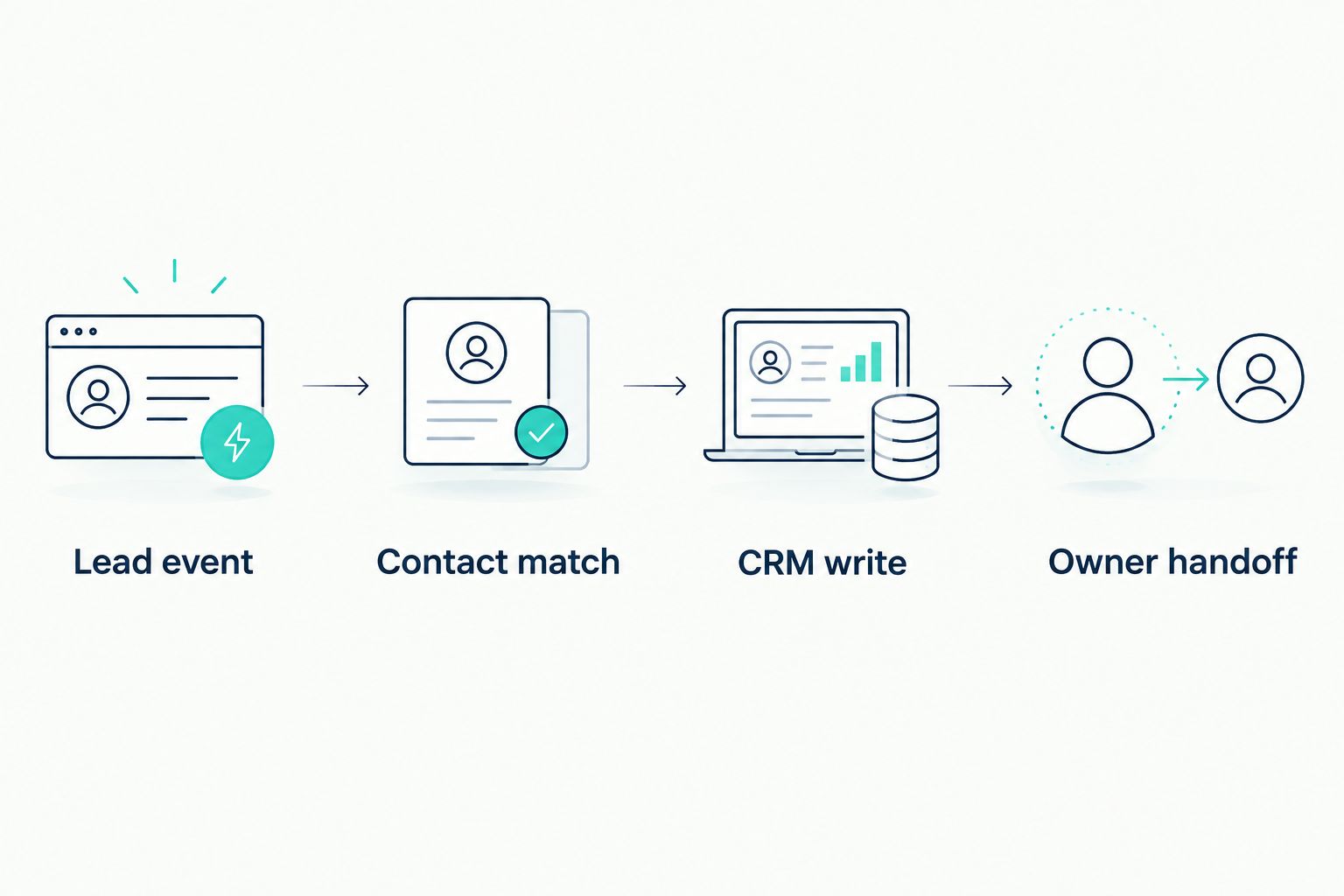
Keep these configuration units separate:
- Lead event: The incoming information that starts the workflow.
- Contact match: The check that identifies an existing customer record.
- CRM write: The creation or permitted update of the destination record.
- Owner handoff: The assignment that makes the inquiry actionable.
This separation makes failures easier to diagnose. If the event arrives but the inquiry has no owner, inspect assignment rather than rebuilding the connection.
Contact matching and field mapping
Configure the contact match
- Choose the identifier your business uses to recognize an existing contact. Use email or phone only when it is present and suitable for your records.
- Normalize that identifier before searching. For phone numbers, preserve country context and apply a consistent format; do not match on formatting alone.
- Search the CRM before creating a contact. If a single valid match exists, attach the inquiry to that record.
- Route ambiguous matches for review. Do not automatically choose between several records merely because they share a name.
- Define the no-match path. Create a new contact only when the incoming information satisfies your CRM's requirements.
Expected result: A returning caller reaches the existing contact record, while a new caller follows a controlled creation path.
Names are useful context, but a name-only match is not a safe identity rule. Two callers can share a name, and one caller can provide different spellings across conversations.
Map the lead information
Build a written mapping before you enable writes. The destination labels below are examples of field purposes, not claims about your CRM's interface.
| Incoming information | Destination purpose | Mapping rule |
|---|---|---|
| Caller name | Contact identity | Preserve the supplied name; do not invent missing parts |
| Email or phone | Contact method and matching | Normalize consistently and retain usable contact details |
| Requested service | Inquiry classification | Use an accepted CRM value or route unmatched values for review |
| Qualification answers | Lead context | Preserve answers without upgrading them into confirmed facts |
| Conversation summary | Inquiry history | Record the request without copying unnecessary sensitive details |
| Appointment details | Scheduling context | Include the date, time, time zone, and booking status when captured |
| Source event identifier | Duplicate-event control | Store it where the connection and CRM permit |
- Match each incoming value to its intended destination. Check the destination's accepted format and required values.
- Separate contact identity from inquiry history. A returning customer's new request belongs in a new inquiry entry, not in a replacement for the customer's earlier request.
- Define missing-value behavior. Leave optional information unchanged when it is absent; send records missing required information to review.
- Restrict overwrites. Do not replace verified contact details, existing ownership, or pipeline decisions without an explicit business rule.
- Review a mapped test record against the original event. Check meaning, not just whether the fields contain text.
Expected result: Your CRM record preserves the customer's request, meets destination requirements, and does not erase useful history.
For a 2026 setup, document these mapping rules alongside the workflow. A later field change should not silently change where customer information lands.
CRM writes, ownership, and release tests
Choose the write behavior
The recommended starting pattern is find the contact, create only when needed, then append the inquiry. Separate the contact decision from the inquiry decision.
| Workflow option | Best for | Advantage | Limitation |
|---|---|---|---|
| Create-only entry | A controlled test with entirely new contacts | Simple to inspect | Repeated or returning inquiries can create duplicates |
| Find, then create or update | Businesses with returning customers | Preserves contact continuity | Requires reliable matching and overwrite rules |
| Review before writing | Ambiguous identities or incomplete required details | Prevents uncertain data from entering live records | Requires staff review before the handoff finishes |
Use the find-first workflow when the supported connection can perform the required search and write actions. Use review-before-writing for cases the matching rule cannot resolve. Do not force uncertain records through automation just to keep the workflow running.
Assign the next action
- Choose 1 fallback owner for inquiries that do not meet a more specific routing rule. Treat this as a setup requirement, not a claim about your current staffing.
- Define what the owner receives: the contact reference, requested service, qualification context, and next action.
- Decide whether CRM entry should trigger follow-up. If another system already handles that action, prevent a second sequence from starting automatically.
- Separate an inquiry from a confirmed appointment. A requested time does not become a booked appointment merely because it reaches the CRM.
- Confirm that failed writes and unassigned inquiries reach someone who can resolve them.
Expected result: Every accepted inquiry has an accountable owner, while uncertain records and failed handoffs have a review path.
Run the release tests
Use 3 test records for the initial acceptance check: a new lead, a returning contact, and a lead with incomplete information. These are prescribed test cases, not performance figures.
- New lead: Confirm that the workflow creates the correct contact and inquiry, then assigns the intended owner.
- Returning contact: Confirm that the workflow finds the existing record and adds the new inquiry without replacing earlier history.
- Incomplete lead: Confirm that the workflow stops or routes for review according to your required-field rules.
Also replay a test event where the integration permits it. Verify that a retry does not create another copy of the same inquiry or start follow-up again.
For your 2026 launch check, inspect the actual destination records. A successful execution message proves that an action ran; it does not prove that the right person received the right information.
Expected result: Your test cases pass at the record and handoff level before live automation starts.
Sync changes to an existing lead
A second workflow is useful when the supported integration exposes later changes to a lead. Examples of the business need include corrected contact details, additional qualification answers, or an appointment status change; verify which events your connection actually provides.
Keep 2 workflow paths distinct: the initial inquiry handoff and the later update. Do not treat every change as a new lead.
- Match the update to the original inquiry using a stable identifier supported by the connection.
- Update only the fields that the event is authorized to change.
- Preserve earlier inquiry context rather than replacing it with an incomplete update.
- Trigger a new owner action only when the change requires attention.
- Test the update without starting the initial follow-up sequence again.
Expected result: Later information reaches the correct record without duplicating the inquiry or restarting unrelated actions.
Only enable this variant after the initial handoff passes its tests. For a 2026 workflow review, check both paths independently: a working new-lead sync does not establish that updates behave correctly.
Troubleshooting
Duplicate contacts appear
Inspect the contact search and identifier formatting. Check whether missing email addresses, inconsistent phone formats, or separate creation branches bypass the match rule. Route ambiguous matches to review instead of creating another record automatically.
The same inquiry appears twice
Check whether retries or multiple triggers process the same event. Where supported, use the source event identifier to recognize an inquiry already handled. Keep contact matching and duplicate-event detection separate: one identifies the person, the other identifies the handoff.
CRM writes fail
Inspect the error for missing required fields, rejected field values, or insufficient permissions. Compare the incoming payload with the destination's requirements. Preserve the failed inquiry for review rather than discarding it or repeatedly submitting unchanged data.
Follow-up starts twice
Check whether both the receptionist workflow and CRM automation respond to the same handoff. Assign ownership of the initial follow-up to one process. Test the correction with fictional contact details before restarting live actions.
Appointment details disagree
Compare the original scheduling information with the CRM entry. Check time zone handling and whether the incoming event represents a request, confirmation, cancellation, or change. Preserve the booking status instead of treating every appointment-related event as confirmation.
Customize your workflow
Expand only after the basic handoff is dependable. Add service-based routing, owner notifications, or qualification-based next actions when the captured information and supported connection can drive them correctly.
AL IntelliFlow's lead capture and appointment booking capabilities belong in a workflow with clear boundaries. The benefit is a connected business process; the constraint is that CRM permissions, field requirements, and integration support still need verification.
Keep a short change log for your 2026 configuration. Record changes to matching, mapping, ownership, and follow-up triggers, then rerun the relevant acceptance tests. A small routing change can alter who receives an inquiry even when the connection remains active.
FAQ
How do I connect an AI receptionist to my CRM?
Verify the supported integration route, authorize access, select a lead event, and configure contact matching before writing CRM records. Test new leads, returning contacts, and incomplete details before enabling automated follow-up.
Does AL IntelliFlow connect directly to my CRM?
Confirm direct connection support for your specific CRM before starting setup. Then verify the available events and actions, including contact search, record writes, and any appointment updates your workflow needs.
Should every receptionist conversation create a new CRM contact?
No; search for an existing contact before creating another record. Keep each new inquiry separate from the contact's identity so returning customers retain their history.
What information should I send into the CRM?
Send usable contact details, the requested service, qualification context, and the next action. Include appointment details only when captured, and preserve their time zone and booking status.
Can I update an existing lead instead of creating another one?
Use an update workflow when the supported connection provides the necessary event and record-matching capability. Match the original inquiry, limit permitted changes, and prevent the initial follow-up sequence from restarting.
Why does my CRM show duplicate leads after a retry?
A retry can create duplicates when the workflow does not recognize an event already processed. Use a supported event identifier for duplicate-event control, separately from the rule used to match contacts.
What should I test before turning on live lead sync?
Test a new lead, a returning contact, and a lead with incomplete information. Check the destination records, owner assignment, missing-field handling, and whether replaying an event duplicates the inquiry or follow-up.
One last thing
Test the handoff, not just the connection. Open the CRM as the person responsible for the next action and check whether the record explains what the customer wants and what happens next. If that person still has to reconstruct the request, the workflow is not finished.