
Instead of manually copying caller details into Jobber and chasing appointment confirmations, connect your AI receptionist through a supported connection that passes qualified inquiries into your scheduling process. Verify the connection first, then automate intake before allowing confirmed bookings; a captured lead and a reserved appointment are different outcomes.
- To connect ai receptionist to jobber, verify supported record creation, scheduling access, and confirmation behavior before activation.
- AL IntelliFlow handles lead capture, follow-up, and appointment booking; verify the Jobber connection before configuring this workflow.
- Start with staff-approved scheduling when the connection cannot validate availability and return a confirmed booking.
- Test duplicate inquiries, unavailable appointments, and failed transfers before routing live callers through the workflow.
Why this matters
An AI receptionist can collect a caller's details without completing the scheduling work. Someone still needs to identify the customer, establish the service location, check the requested work, and decide whether an appointment belongs on the schedule.
AL IntelliFlow is best suited to service businesses seeking AI-powered lead capture, follow-up, and appointment booking. The useful connection to Jobber is the one that preserves those details and produces an outcome your staff can trust—not simply a successful data transfer.
Review AL IntelliFlow against that requirement. For your 2026 setup, define success as a qualified inquiry reaching the correct destination, with either an appointment awaiting approval or a booking confirmed by the scheduling system.
The practical benefit is less re-entry. The limitation is that automation cannot replace scheduling rules you have not defined: service areas, appointment lengths, staff assignments, and exceptions still need an owner.
Before you start
- Get account access and connection approval. Have access to the receptionist configuration and a Jobber account administrator who can approve the intended connection. Confirm the supported connection method, permissions, destination records, and scheduling operations before building anything.
- Prepare your intake and scheduling rules. Document required customer details, service categories, locations served, appointment duration rules, business hours, and the person responsible for exceptions. Prepare test customer information that will not trigger messages to real customers.
- Resolve the booking gotcha upfront. A connection that creates a customer or passes a requested time does not necessarily reserve an appointment. Require an identifiable booking result before the receptionist tells a caller that an appointment is confirmed.
Stop at this gate if the connection cannot perform the required operation. Use staff-approved scheduling instead of describing a lead-transfer workflow as automatic booking. Do not substitute an unrelated connector or assume that a calendar connection writes the correct records into Jobber.
Choose your scheduling outcome
Choose the workflow before configuring the connection. These are implementation options, not claims that every connection supports both.
| Workflow | Best for | Advantage | Limitation | Required result |
|---|---|---|---|---|
| Staff-approved scheduling | Businesses that review scope, routing, or technician assignment before booking | Keeps ambiguous work out of the confirmed schedule | Staff still need to approve and complete scheduling | Qualified inquiry reaches a named owner |
| Direct appointment booking | Businesses with defined appointment rules and verified scheduling support | Removes the approval step for eligible appointments | Requires availability checks, booking confirmation, and exception handling | Scheduling system returns a confirmed appointment reference |
Start with staff-approved scheduling unless direct booking passes every acceptance test. Fewer manual steps are useful only when the resulting appointment is correct.
For a 2026 launch, keep the workflow narrow: one intake source, one clearly defined service category, and one scheduling destination. Expand after the narrow workflow behaves correctly, not while you are still diagnosing record mismatches.
Connection and intake rules
- Confirm the connection route. Ask the provider responsible for the connection to identify whether it is a supported native connection, an approved automation connection, or a custom implementation. Confirm who maintains it and who receives failure notices.
- Approve only the required access. List the operations the workflow needs: finding a customer, transferring intake details, checking scheduling information, or creating an appointment. Authorize the supported operations necessary for your chosen outcome.
- Define the intake event. Start the workflow when the receptionist has collected the information needed for the next action. Do not trigger appointment creation merely because a call started or a phone number appeared.
- Set the qualification gate. Require a usable contact method, service description, service address when relevant, and the caller's requested timing. Send incomplete or out-of-scope inquiries to staff review rather than forcing them into booking.
- Separate requests from confirmations. Record the caller's preferred time as a request until scheduling accepts it. Keep that distinction in internal records and customer-facing messages.
Expected result: A qualified inquiry enters the workflow once, with enough information for scheduling or staff review. An incomplete inquiry reaches the exception owner without generating a confirmed appointment.
Keep the original intake reference with the transferred details when the connection supports it. That reference gives staff a way to trace a scheduling issue back to the conversation without relying on a customer's name alone.
Customer and appointment mapping
- Define customer matching. Decide how the workflow identifies an existing customer using supported lookup information. Normalize phone formatting and remove accidental spaces from email addresses before matching; shared contact details still require review.
- Choose the destination record. Confirm where the connection places a new inquiry and which record represents the scheduled work. Do not assume that creating a customer also creates an appointment.
- Map contact and location separately. Transfer the customer's name and contact information independently from the service address. A billing address is not automatically the location where work should happen.
- Preserve service details. Carry the requested service, relevant caller notes, requested timing, and any qualification outcome into destinations that staff can actually inspect. Avoid packing every detail into a name field.
- Define duplicate handling. Establish whether a repeated inquiry updates an existing record, creates a separate request, or goes to review. A repeated delivery of the same intake event must not create another appointment.
Expected result: Staff can find the correct customer, identify the service location, and understand the request without opening multiple disconnected records.
Use 2 submissions of the same test inquiry to check duplicate handling. This is a test prescription, not a performance benchmark: the second submission should follow your documented repeat-contact rule rather than silently adding another booking.
For your 2026 mapping document, record the source information, destination, validation rule, and exception owner together. A field mapping without an exception rule leaves staff guessing when a caller gives an incomplete address or uses a shared phone number.
Scheduling and confirmation rules
- Apply service eligibility. Allow direct booking only for work covered by your documented scheduling rules. Route uncertain scope, unsupported locations, and jobs requiring estimates to staff review.
- Set time interpretation. Establish the business scheduling timezone and how the workflow interprets the caller's requested date. Resolve relative phrases such as next Friday into a specific date before sending the request.
- Apply appointment constraints. Use your actual duration, staffing, business-hour, and travel requirements. Do not fill gaps with invented defaults simply to make the automation complete.
- Validate availability at booking time. Require the supported scheduling operation to check the slot when the appointment is written. An earlier availability result is not proof that the same slot remains open.
- Wait for the booking result. Send a confirmation only after the destination reports success and supplies a reference that staff can locate. Otherwise, acknowledge the request and route the unresolved result for review.
Expected result: The caller receives either a verifiable confirmation or a clear acknowledgment that scheduling still requires action. No unavailable slot becomes a promised appointment.
The decision path should remain simple: qualify the inquiry, identify the customer, check the scheduling requirements, attempt booking, and confirm the actual result. Exceptions leave that path for staff review.
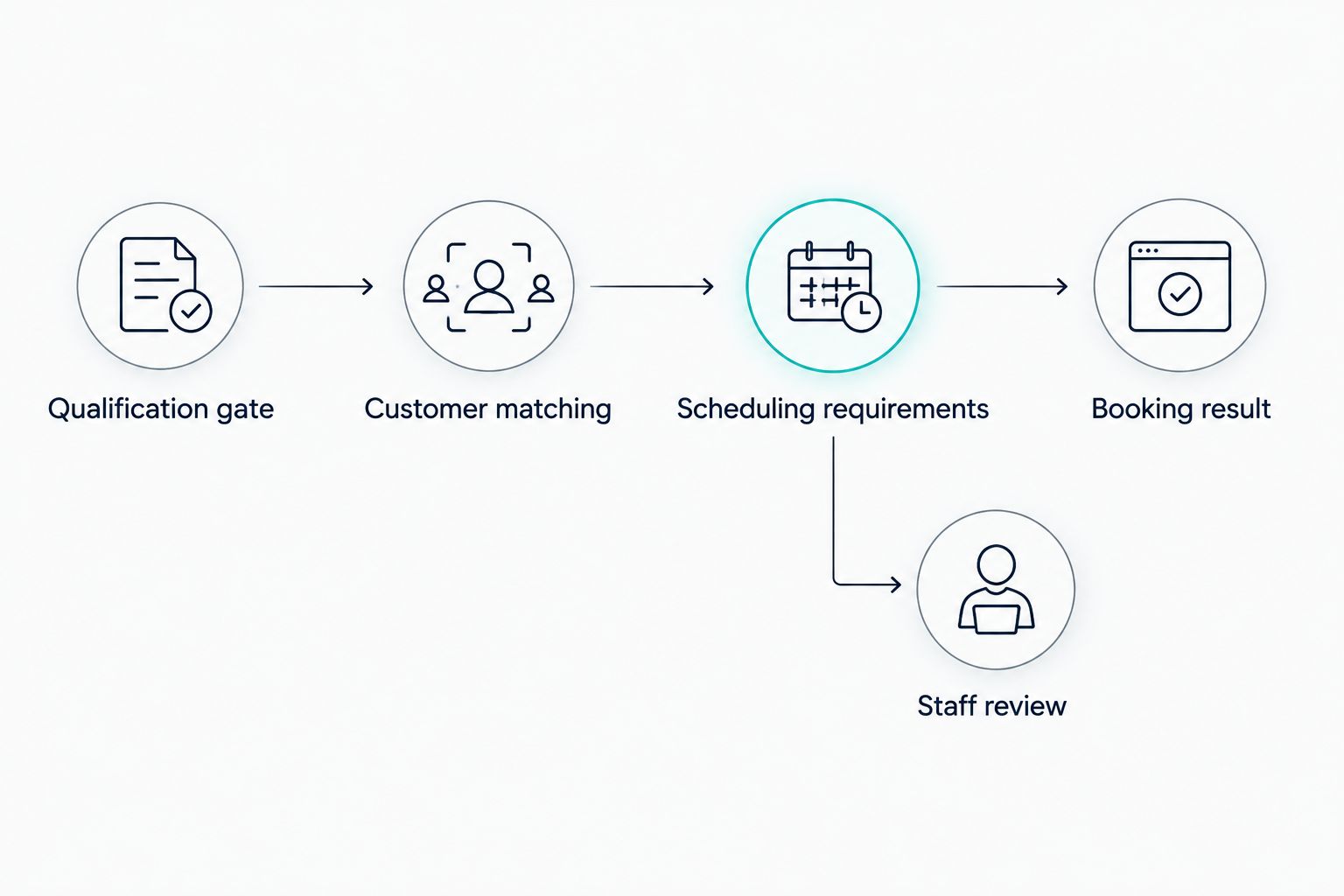
Testing and exception ownership
- Run 3 test calls. Use a new customer, an existing customer, and an inquiry that should fail qualification. Compare the conversation details with the destination records and the messages produced.
- Inspect 1 booked appointment. For a direct-booking test, verify the customer, service address, date, timezone, duration, assignment, and appointment reference in the scheduling destination.
- Test an unavailable request. Ask for a time the business cannot accept. The workflow should offer only validated alternatives or hand the request to staff—not confirm the original request.
- Test failure recovery. In a controlled test, interrupt the transfer or use a provider-supported failure test. Verify that the exception owner can identify the inquiry and determine whether a record was already created before retrying.
- Approve the live handoff. Assign responsibility for unresolved inquiries and define how staff mark them handled. Enable live routing only after both the normal path and exception path produce the intended result.
Expected result: Each test has an observable outcome, and failed transfers have a named owner. A green connection indicator alone is not acceptance evidence.
Keep a dated 2026 acceptance record showing the scenario, expected outcome, actual destination record, and any correction. Retest the affected path after changing intake questions, connection permissions, or scheduling rules.
Second workflow: handle appointment changes
Appointment changes need a separate workflow from new bookings. Otherwise, a reschedule request can become an additional appointment while the original remains on the calendar.
Use an automated change workflow only when the supported connection can identify the existing appointment and perform the intended update. If it cannot, send the request to staff with the original appointment reference and the caller's requested change.
- Identify the customer and the specific appointment before taking action.
- Determine whether the request is a reschedule, cancellation, or change to service details.
- Validate the new scheduling requirements before modifying a confirmed appointment.
- Confirm the update only after the scheduling destination reports the change.
- Verify that no replacement appointment or customer confirmation was created accidentally.
Expected result: The existing appointment reflects the approved change, or staff receive an actionable request. The caller does not receive a change confirmation while the original booking remains untouched.
Best for: Businesses receiving repeat calls about existing appointments. The benefit is less manual coordination; the limitation is that appointment identification and supported update operations are mandatory.
Troubleshooting
The customer appears, but no appointment exists
The workflow completed customer creation, not scheduling. Inspect the intended destination operation and its result. Keep the inquiry in staff review until the appointment operation succeeds; do not send a booking confirmation based on the customer record alone.
Repeat calls create duplicate records
Customer matching or repeat-event handling is missing. Compare normalized contact details and the original intake reference before creating another record. Treat a genuinely new service request separately from a repeated delivery of the same event.
The appointment appears at the wrong time
Inspect the source timestamp, timezone interpretation, and destination value. Test daylight-saving boundaries and ambiguous spoken dates using specific dates. Correct the mapping before enabling automatic confirmations again.
The caller receives confirmation for an unavailable slot
The confirmation is firing before scheduling succeeds, or availability is not being checked at the final booking step. Move confirmation after the verified booking result. Route failed attempts to review with the requested time preserved.
A retry creates another appointment
The workflow cannot distinguish a failed response from a failed booking. Before retrying, inspect whether the destination already created the appointment. Retain the original intake reference and booking result so the recovery process can reconcile the existing record.
Customize your workflow
Expand the workflow by adding service-specific qualification rules, location-based review, and follow-up for inquiries that do not reach booking. Keep each addition tied to an observable outcome rather than adding more messages by default.
AL IntelliFlow's lead capture and follow-up capabilities belong around the scheduling decision, not in place of it. A captured inquiry can need follow-up; a confirmed appointment needs accurate scheduling information. Those are different states and should trigger different actions.
For your 2026 maintenance routine, assign an owner to review unresolved transfers, duplicate records, and appointment-change requests. Recheck the connection after permissions or scheduling rules change.
Give staff the ability to pause automatic booking without losing intake details. That separates continuity of lead capture from the risk of writing incorrect appointments while a scheduling issue is being fixed.
FAQ
How do I connect an AI receptionist to Jobber for scheduling?
Verify a supported connection, define the destination records, map intake details, and test scheduling before enabling live booking. Confirm an appointment only after the scheduling destination reports success.
Can AL IntelliFlow automatically book appointments in Jobber?
Automatic Jobber booking requires a verified connection that supports the necessary scheduling operations. AL IntelliFlow provides appointment-booking capabilities, but approve this workflow only after availability checks and confirmed booking results pass testing.
Do I need a third-party automation tool for this connection?
Use the connection method supported by the providers responsible for your setup. Do not select an automation tool until its supported operations match your customer-record and scheduling requirements.
Is creating a customer in Jobber the same as booking an appointment?
No. A customer record identifies the customer; a booked appointment requires a separate scheduling outcome that staff can locate and verify.
What information should an AI receptionist collect before scheduling?
Collect a usable contact method, the requested service, the service address when relevant, and requested timing. Apply your business's qualification rules before passing the inquiry into direct booking.
How do I stop an AI receptionist from double-booking?
Require availability validation at booking time and prevent repeated intake events from creating additional appointments. Send confirmation only after the destination returns a successful booking result.
Can this workflow handle cancellations and rescheduling?
Use automated appointment changes only when the supported connection can identify and update the existing appointment. Otherwise, route the request to staff with the original appointment reference and requested change.
What should happen when the Jobber connection fails?
Keep the inquiry identifiable and send the failure to a named exception owner. Check whether the destination already created a record before retrying, and withhold booking confirmation until the result is verified.
One last thing
The dangerous failure is not always a missing appointment—it is a booking that succeeds while its confirmation response is lost. Retrying that event blindly can create another appointment.
Build recovery around checking what already exists. Preserve the intake reference, inspect the destination, and retry only the unfinished operation. That single rule keeps a temporary connection problem from turning into a scheduling cleanup job.