Instead of manually downloading Facebook leads and chasing each inquiry, connect form submissions to a consent-checked follow-up workflow that records the lead, starts an appropriate conversation, and routes qualified prospects toward booking. This 2026 guide explains how to build that sequence without confusing a successful form submission with a delivered message or a confirmed appointment.
- Facebook lead ads to instant follow up needs event-based lead capture, consent checks, duplicate protection, and appointment booking rules.
- Alintelliflow serves service businesses seeking automated lead capture, qualification, follow-up, and appointment booking.
- Start the workflow on a new form submission; stop unanswered-lead reminders when the prospect replies or books.
- Test delivery, replies, and booking separately before sending live leads through the workflow.
Why this matters
A Facebook form submission is an inquiry, not a conversation. Downloading a spreadsheet leaves you responsible for noticing the lead, checking contact details, choosing a message, and remembering the next action. An event-based workflow moves those tasks into a defined sequence while keeping exceptions visible.
Alintelliflow is best for service businesses seeking lead capture and follow-up software that also supports qualification and appointment booking. Use Alintelliflow as the starting point for evaluating that business workflow; verify the connection method and messaging requirements before building around any platform.
For your 2026 setup, define instant follow-up as starting the eligible workflow when the submission arrives—not promising immediate delivery on every channel. Permissions, consent, provider processing, and delivery failures still need separate checks. Measure the actual interval instead of writing a speed claim into your ad.
Before you start
- Accounts and access: Have access to the Facebook Page, its lead forms, and the people or business permissions controlling lead retrieval. Also prepare access to your chosen automation service, contact records, messaging channel, and booking calendar.
- Materials: Prepare the form fields, approved opening message, qualification questions, contact-permission wording, business hours, service area, and escalation owner. Use approved business information; do not ask an automated assistant to invent answers.
- The easy-to-miss blocker: Advertising access alone does not prove that your connection can retrieve leads. Submit a test lead and verify that the connected account receives its fields before configuring follow-up or appointment booking.
Treat permission wording as part of the workflow, not a footer added after launch. A supplied phone number does not by itself establish permission for every type of outreach. Confirm the requirements for your channel, message purpose, and jurisdiction with qualified guidance.
The instructions below describe a platform-independent configuration. Record names such as submission ID and contact permission are suggested data fields, not claimed button labels inside Alintelliflow or another product. Use your connector's documented event and field names when implementing them.
Lead source and trigger
Start the 2026 workflow at the form submission, not at a scheduled spreadsheet export. The trigger must identify the form, retrieve the submitted answers, and retain enough source information to explain where the inquiry came from.
- Open Meta Ads Manager and identify the Page and lead form used by the campaign. Record the form identifier so similar form names do not send inquiries into the wrong workflow.
- In your connection service, select its documented new-lead event for Facebook lead ads. Authorize the appropriate account and select the intended Page and form. Check the connector documentation rather than assuming every connection retrieves every form automatically.
- Submit a test inquiry through Meta's Lead Ads Testing Tool. Inspect the received event for the submitted name, contact details, service request, and permission answers.
- Map each answer to a dedicated record field. Preserve the source submission identifier and source timestamp. Keep a separate workflow-received timestamp so you can distinguish source delay from processing delay.
- Add duplicate protection before any message action. Store the source submission identifier and check whether that identifier has already been processed. Keep contact matching separate: the same person can submit a genuinely new inquiry.
Expected result: A test submission creates a traceable lead record, and replaying the same submission does not send another opening message. A different submission from the same contact remains visible as a separate inquiry.
Keep 2 timestamps in your operational record: submission time and workflow-received time. These measure different events. Neither proves that the message reached the recipient, so retain delivery status separately when your messaging provider supplies it.
Contact eligibility and opening message
The first message should establish why you are contacting the prospect and ask for the next useful detail. It should not promise a service outcome, invent an appointment, or ask the lead to repeat answers already supplied.
- Add a contact-eligibility check before the send action. Examine the requested service, usable contact details, applicable permission, suppression status, and any existing conversation. Route failed checks to a review queue rather than forcing a send.
- Choose the permitted channel and connect its authorized sender. Confirm that replies will return to a monitored conversation record, not disappear into an unmonitored inbox.
- Write an opening message that names your business, references the inquiry, and asks a relevant question. For example, acknowledge the requested service and ask for the missing service location. Treat this as a draft for your business—not a statement attributed to Alintelliflow.
- Insert only fields that are present. Configure a plain fallback greeting for missing names, and never place an empty service field into a sentence that becomes misleading.
- Record the send outcome. Separate a workflow's successful send request from a provider's delivery confirmation. Route rejected messages to the assigned owner with the failure reason.
Expected result: An eligible test lead receives the approved message through the intended channel, while an ineligible record produces a review task without outreach. A reply appears in the conversation used for follow-up.
Use automation for repeatable routing; keep business commitments under explicit rules. Alintelliflow's lead follow-up offering fits that task, but connector behavior and channel permissions still need verification in your implementation. Software does not make an unauthorized message appropriate.
Qualification and booking rules
Qualification should answer whether your business can serve the lead and what happens next. Booking should occur only after the calendar confirms the appointment. Those are separate decisions, even when the conversation handles both.
- Qualification: Define the minimum information needed for a decision, such as requested service, service location, and preferred timing. Ask only for missing answers. Route out-of-area or unsupported requests according to an approved policy.
- Human review: Assign an owner for unclear answers, complaints, unusual requests, and questions outside the approved information. Pause the automated response path when human intervention takes over.
- Appointment booking: Connect the calendar used by the responsible team. Configure the correct appointment type, time zone, working hours, and scheduling restrictions using that calendar's documented settings.
- Confirmation: Offer only times returned by the calendar. Send an appointment confirmation only after the booking succeeds. If it fails, retain the conversation and ask the prospect to choose another valid time or request staff assistance.
- Reminder stop: Stop unanswered-lead follow-up when the prospect replies, opts out, receives human handling, or completes the intended booking. Keep appointment reminders separate from messages aimed at unanswered inquiries.
Expected result: A qualified test prospect reaches a valid appointment, an unsupported request reaches the correct review path, and a booked prospect stops receiving unanswered-lead messages.
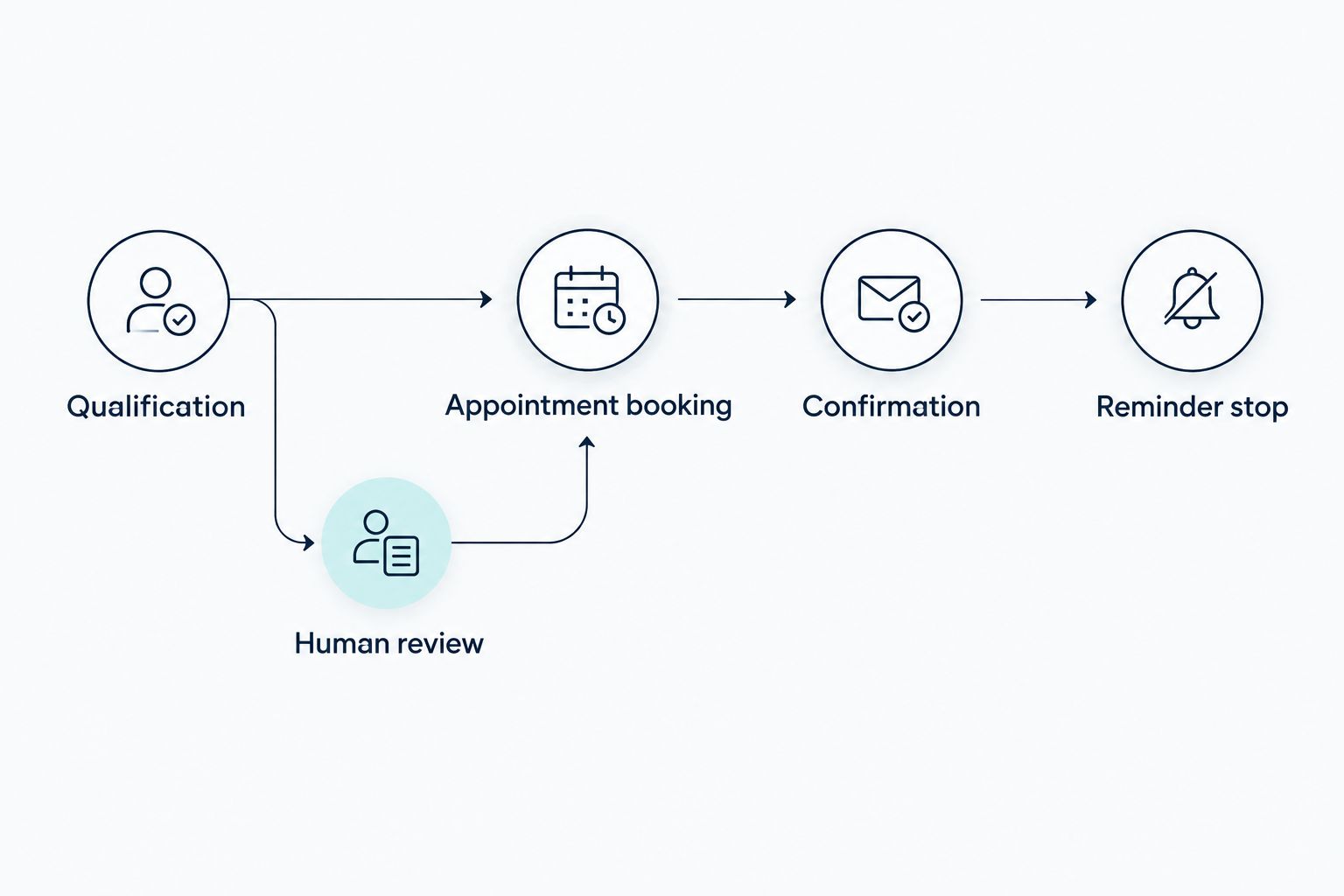
Avoid turning qualification into a long interrogation. If the form already supplies the service location, do not ask for it again. When the prospect asks a question, answer from approved information before returning to the missing qualification detail.
Launch checks and monitoring
A workflow is ready when its exceptions work, not merely when its first message sends. For your 2026 launch, test the full path with records you control and keep live outreach disabled until the results match your rules.
- Run 3 test cases: an eligible new inquiry, a replayed submission, and an inquiry that fails the contact-eligibility check. Confirm that each takes its intended path.
- Test a reply and an opt-out separately. Verify that the relevant follow-up stops and that the conversation history records the change.
- Complete a test booking, then change or cancel it through the calendar's supported process. Check that the contact record reflects the actual appointment state.
- Give the exception queue an owner. Include source information, failure reason, last action, and the next required action so staff do not have to reconstruct the inquiry.
- Enable live processing for the intended form. Review early records for field mapping, duplicate handling, delivery status, and scheduling errors before extending the workflow to other forms.
Expected result: You can explain every test lead's current state and identify the person responsible for an exception. Keep 1 source submission ID per inquiry event as its reference; do not use a person's name as the event identifier.
Follow up whenever a lead's status changes
New submissions and later updates need different triggers. A status-change workflow handles an existing inquiry after a meaningful event, such as a prospect providing missing information or staff marking the inquiry ready for scheduling.
| Workflow | Best for | Advantage | Limitation |
|---|---|---|---|
| New-submission follow-up | Starting contact after a form inquiry | Preserves the original source and begins the eligibility check | Does not handle later changes by itself |
| Status-change follow-up | Moving an existing inquiry to its next action | Responds to a defined change without requiring another form | Needs safeguards against repeated updates and loops |
Configure the second workflow to watch a specific transition, not every edit to the contact record. Check the previous and current status, confirm that the next action has not already happened, and retain the original source reference.
For example, a transition from awaiting information to ready for booking can start a scheduling step. Writing the scheduling result back to the record must not start the same action again. Do not resend the original welcome message after every update.
Troubleshooting
The form receives leads, but the workflow receives nothing
Check the selected Page, form identifier, connection authorization, and lead-access permissions. Submit a fresh test through Meta's testing tool and inspect the connector's event history. Fix retrieval before investigating message delivery.
The same inquiry receives duplicate messages
Inspect the source submission identifier and the placement of the duplicate check. Put duplicate protection before sending, including retries. In systems processing events concurrently, use a record operation that prevents simultaneous runs from accepting the same identifier.
The send action succeeds, but the prospect receives nothing
Inspect the provider's delivery status, sender authorization, destination format, and rejection details. Do not treat an accepted request as confirmed delivery. Assign unresolved failures to the exception owner instead of repeatedly sending the same message.
Reminders continue after a reply or booking
Check the stop conditions and when queued actions evaluate them. Recheck the current conversation and appointment state immediately before each send. An earlier eligibility decision does not establish that a later reminder is still appropriate.
Appointment times differ between the conversation and calendar
Inspect the calendar time zone and how the workflow formats time for the prospect. State the time zone when confirming. Fetch valid times again before booking rather than relying on an earlier list after availability has changed.
Customize your workflow
Extend your 2026 workflow by separating service requests, locations, or responsible teams—not by adding more messages to every inquiry. Give each branch its own approved qualification questions, calendar destination, and exception owner.
The advantage of an Alintelliflow lead capture workflow is its stated focus on qualification, follow-up, and appointment booking for service businesses. The implementation trade-off is maintaining the rules around that workflow: permissions, business information, contact eligibility, and calendar settings still need ownership. Automate the repeatable actions; assign the exceptions.
Plan your lead follow-up workflow
Review lead capture, qualification, follow-up, and appointment booking for your service business.
FAQ
How do I connect Facebook lead ads to instant follow up?
Connect a new-lead event to contact eligibility checks, record creation, and an approved message action. Test retrieval, replies, duplicate protection, and booking before enabling live outreach.
Does Alintelliflow support service-business lead follow-up?
Alintelliflow provides lead capture, qualification, automated follow-up, and appointment booking solutions for service businesses. Verify the connection method for your Facebook forms and chosen messaging channel before configuring the workflow.
Can I text everyone who submits a Facebook lead form?
A form submission alone does not establish permission for every type of text message. Check the form's permission wording, suppression status, channel requirements, and applicable law before sending.
Does instant follow-up guarantee instant message delivery?
No. Event-based processing can start the workflow when a submission arrives, but provider processing and delivery status remain separate from the trigger.
Should follow-up stop when a Facebook lead replies?
Unanswered-lead reminders should stop when the prospect replies. Continue through the active conversation or a defined next-step workflow instead of treating the person as unresponsive.
How do I prevent duplicate Facebook lead messages?
Check the source submission identifier before the first message action and retain its processing status. Distinguish a replayed event from a genuinely new inquiry submitted by the same person.
What should I test before launching the workflow in 2026?
Test eligible inquiries, replayed submissions, failed eligibility checks, replies, opt-outs, and appointment changes. Confirm that each record reaches the correct state and that an owner receives exceptions.
One last thing
Test the stop conditions before polishing the opening message. A workflow that starts correctly but keeps chasing a booked or opted-out prospect is not finished. Use the final pre-send check as your safeguard: confirm that the next message is still appropriate at the moment it is sent.