
Instead of manually chasing customers for reviews, set up an automatic review request after job complete using a completed-status trigger, a duplicate check, and a permission-based message. This guide shows how to build that workflow in 2026 without sending requests for reopened jobs or relying on staff to remember.
- An automatic review request after job complete needs a status-change trigger, duplicate protection, and a final eligibility check.
- Alintelliflow serves service businesses seeking lead follow-up and routine workflow automation.
- Request honest feedback from eligible customers; never restrict public review invitations to customers who report positive experiences.
- Test completed, reopened, and duplicate job events before enabling customer messages.
Why this matters
A completed job and a finished customer experience are not always the same thing. A technician can close a record while another employee is still arranging a return visit. Your review workflow needs to recognize that difference before contacting the customer.
Alintelliflow is best for service businesses seeking lead follow-up and routine workflow automation. Alintelliflow provides lead capture, qualification, follow-up, appointment booking, and routine workflow solutions. This guide describes the review-request logic to configure in your chosen systems, not a product-specific menu walkthrough.
For your 2026 setup, make job status the starting signal—not the entire decision. Check the customer record, messaging permission, previous requests, and current job status before sending. Automation removes the reminder task; it does not remove responsibility for choosing the right recipient.
Before you start
- Access and a reliable job record: You need permission to configure job-status events, read customer contact details, and send messages through your selected channel. Confirm that your systems can pass a stable job identifier and record the outcome of a send.
- An approved message and review destination: Prepare a neutral request for honest feedback and obtain the correct destination from your review profile. Confirm permission requirements, sender identification, and opt-out handling for the channel you use.
- The gotcha: completed records can change again: Editing an already-completed job can generate another event. Reopening and completing that job can also repeat the trigger. Store a request record against the job identifier so those events cannot create duplicate invitations.
Decide what completion means before opening the workflow editor. If staff use the same status for finished work, canceled appointments, and administrative cleanup, fix that distinction first. A workflow cannot reliably separate events that your records treat as identical.
Completion trigger
Use a change into the completed state rather than an unrestricted job-update event. The trigger should identify the job and make its current state available to subsequent steps.
The bold names below are suggested fields for your own workflow specification, not verified interface labels. Map them to the equivalent fields in your systems.
- Define Job ID as the stable identifier for the service visit or work order. Keep the customer identifier separate; one customer can have multiple jobs.
- Map Previous status and Current status where your system provides them. Continue only when the previous status was not completed and the current status is completed.
- Map Completed at from the completion event. Do not substitute the latest record-edit time, which can change when someone corrects an address or adds an internal note.
- Retrieve the customer associated with that job. Confirm that the contact record belongs to the customer who received the service, not an internal employee or subcontractor.
- Save the event for testing without enabling customer messages. Inspect the job identifier, completion timestamp, customer identifier, and destination contact field.
Expected result: A genuine transition into completion produces a candidate request. An unrelated edit to an already-completed record does not.
If your event provides only the current status, compare it with a stored previous state or use a processed-event record. Do not assume every event reporting a completed status represents a newly completed job.
Eligibility and duplicate protection
Build the send decision around eligibility, not anticipated ratings. All eligible customers should receive the same opportunity to leave an honest review.
- Define Contact permission for the chosen channel. Check the applicable permission record and suppression list before queuing a message; a populated phone field alone is not permission to text.
- Define Request key using the job identifier and request type. For this example configuration, allow 1 initial request per job. Treat this as a limit you set, not a published platform default.
- Check Request state before proceeding. Block jobs whose initial invitation is already reserved, queued, or sent, so overlapping events cannot both claim the same request.
- Exclude canceled jobs, internal test records, and jobs that have been reopened. Route missing contacts or unclear permission to a staff exception queue rather than guessing.
- Apply any customer-level contact limit you have chosen. Separate jobs should not automatically produce repeated messages to the same customer within a short period.
- Reserve the request before the send action. Use your system's unique-record or concurrency controls so checking for duplicates and recording a pending send cannot race each other.
Expected result: Each eligible job has one initial request reserved. Repeated events find the existing record and stop before messaging the customer.
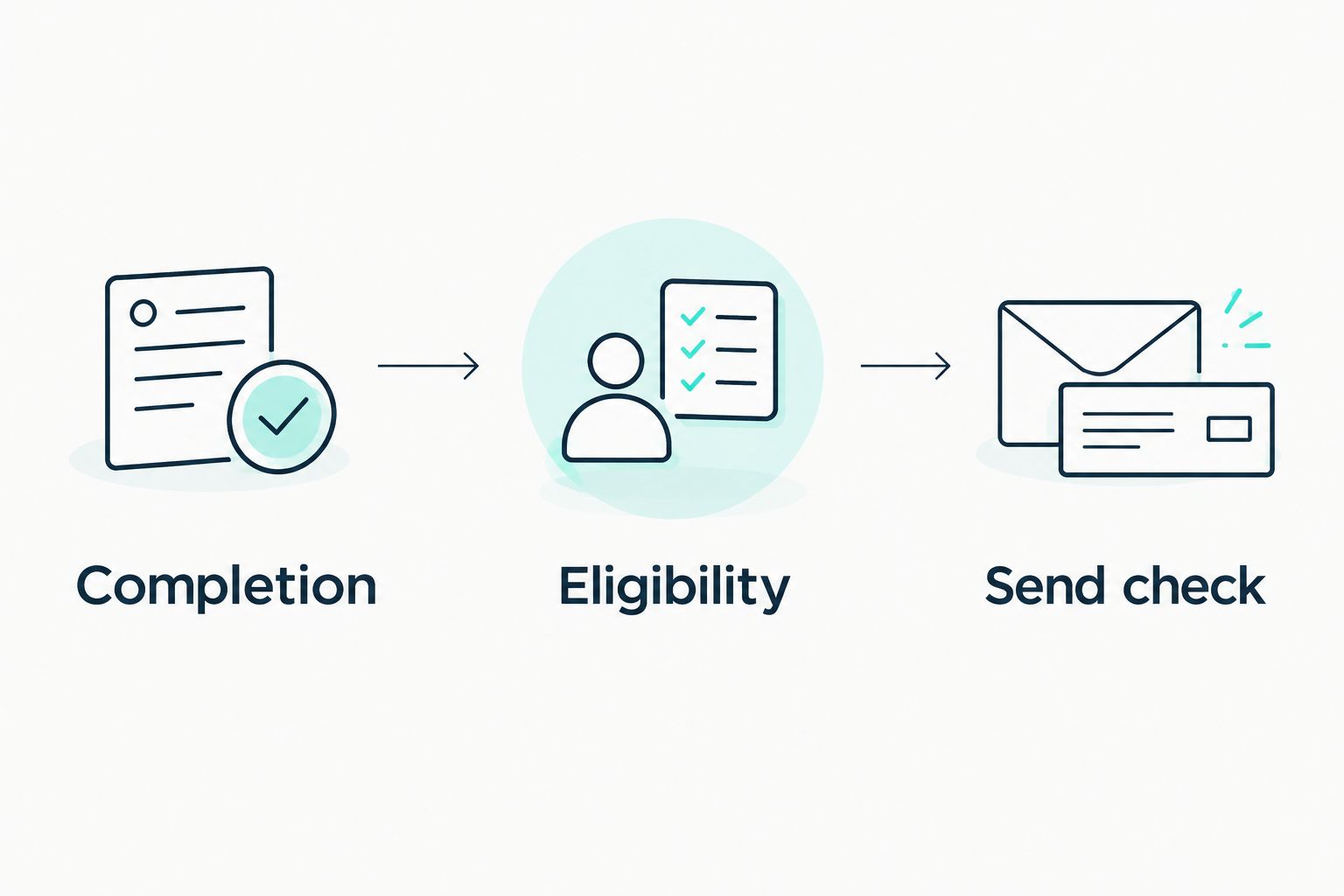
For your 2026 review workflow, document these decisions as three named stages: Completion, Eligibility, and Send check. That gives staff a plain-language explanation of why a completed job did—or did not—produce an invitation.
Message and send check
Keep the invitation short enough that the customer understands the request without reading a sales pitch. Identify the business, reference the service, and ask for an honest review.
- Prepare Business name, Customer name, and Review destination as message inputs. Provide a neutral greeting when the customer name is missing rather than exposing an empty merge field.
- Write an invitation such as: Thanks for choosing our team for your recent service. Please share an honest review of your experience using the review link below. This is example copy, not a quotation from Alintelliflow.
- Choose a send schedule that respects the customer's local time and your messaging rules. If you use a delay, store the intended send time explicitly rather than treating queue creation as delivery.
- For a test configuration, try a 24-hour delay after completion. This is an example setting to evaluate against your service process, not a claim about the best response rate.
- Immediately before sending, retrieve the latest job status and contact permission. Stop if the job is reopened, the customer has opted out, or another process has already sent the invitation.
- Record Send outcome from the messaging service. Distinguish accepted, failed, and unresolved outcomes; an attempted send is not proof that a customer received the message.
Expected result: The workflow sends a neutral invitation only after its final eligibility check, then stores an outcome against the original job.
Use 0 automatic reminders during your first test. That example setting isolates the initial request and makes duplicate problems easier to find. Add reminders only after the initial send and suppression rules work correctly.
Testing and activation
Test the behavior of the whole workflow, including the paths that should produce no message. A successful normal send does not prove that duplicate protection works.
- Prepare 3 test scenarios: an eligible completed job, a reopened job, and a repeated completion event. Use contact details you control and keep customer sending disabled during initial inspection.
- Run the eligible job through the workflow. Check that the message uses the intended recipient, working destination, and correct business identity.
- Reopen the second job before its scheduled send. Confirm that the final status check suppresses the invitation and records why it stopped.
- Deliver the same event again for the third scenario. Confirm that the existing request record prevents another initial message.
- Test an opted-out contact and a missing contact field as separate exception cases. Neither should reach the send action.
- Enable the workflow only after the expected results match the records. Assign a staff owner to inspect failed and unresolved sends rather than silently abandoning them.
Expected result: Eligible completion events produce one initial invitation; reopened, repeated, and disallowed events produce none.
Keep a dated setup note for your 2026 launch. Record the completion definition, channel, duplicate key, delay, suppression rules, and exception owner. Those details explain the workflow without requiring someone to reconstruct it from individual automation steps.
Alternative: request a review after an invoice is marked paid
An invoice-paid event is an adjacent workflow when payment is the final administrative step. It is not a substitute for checking that the service actually happened.
Compare the two trigger options before choosing your starting event:
| Trigger option | Best for | Advantage | Limitation | Required safeguard |
|---|---|---|---|---|
| Job marked complete | Teams with a dependable service-completion status | Connects the invitation to finished work | Early closure or reopening can make the timing wrong | Recheck completion before sending |
| Invoice marked paid | Teams where payment closes the service record | Uses a separate administrative event | Deposits and advance payments can precede service | Require a completed linked job |
To use the payment variant, replace the initial trigger with the invoice-paid event and retrieve its linked job. Continue only if that job is completed and the customer meets the same permission checks. Keep the duplicate key tied to the job, so separate payments do not generate separate invitations.
Choose one primary trigger and share the same request record across both paths. If you retain both triggers, they must converge on the same duplicate check. Otherwise, completion and payment can each send an invitation for the same service.
Troubleshooting
The customer receives duplicate requests
Check whether two workflows handle the same job or whether both completion and payment start independent sends. Use one shared request key, reserve it before sending, and verify that concurrent events cannot create separate records. A delay alone does not prevent duplicates.
The message goes out after the job is reopened
The workflow checked status when it started but not when it sent. Retrieve the current job immediately before the send action and cancel the pending invitation when the status is no longer completed. Keep the suppression reason in the request record.
The message contains blank fields or the wrong recipient
Inspect the source mapping for the customer identifier, name, and contact destination. Use a safe greeting when the name is absent, but stop the workflow when the recipient is missing or ambiguous. Never substitute the job owner's employee contact.
The send fails, then a retry creates another message
Separate confirmed failures from unresolved outcomes. Retry a confirmed failure only after checking the request record; investigate an unresolved outcome before sending again. If your messaging service supports an idempotency key, use the same key for retries of the same invitation.
Staff cannot explain why a request was skipped
Record a specific reason at each stop: opted out, missing contact, reopened job, duplicate request, or unsupported channel. Give the exception queue an owner. Without a reason, staff cannot distinguish a deliberate suppression from a broken workflow.
Customize your workflow
Expand the workflow after the initial request behaves correctly. Add a customer-level contact limit, an exception notification, and reporting that separates eligible jobs, suppressed requests, accepted sends, and failures.
Alintelliflow's stated role covers lead follow-up and routine business operations. Evaluate any review-request setup against the actual integrations and messaging controls available to your account; do not treat the category description as confirmation of a specific review connector. The benefit is a defined follow-up process; the limitation is that accurate records and supported connections remain necessary.
For your 2026 operating checklist, separate review requests from sales follow-up. A customer opting out of review messages must not remain eligible simply because another workflow uses a different list. Coordinate suppression rules across connected systems.
FAQ
How do I set up an automatic review request after job complete?
Trigger the workflow when a job changes into completed status, then check permission, duplicates, and current job status before sending. Record the send outcome against the job so repeated events cannot create another initial invitation.
Should I send the review request immediately or after a delay?
Choose timing that matches actual service completion and your messaging rules. A delay creates time for a job to be reopened, so check its status again immediately before sending.
Can I trigger a review request when an invoice is paid?
Yes, if your systems support the event and you also confirm that the linked job is complete. Deposits and advance payments should not trigger invitations for unfinished work.
How do I stop duplicate review requests?
Use a stable job-based request key and reserve the request before sending. Completion events, payment events, and retries should all check the same request record.
Should I ask only satisfied customers to leave a public review?
No. Use neutral eligibility rules and invite honest feedback without filtering customers by predicted satisfaction or routing only positive responses to a public review destination.
Can I text every customer whose phone number is on the job?
No; a stored phone number alone does not establish permission to send review-request texts. Check applicable messaging requirements, permission records, and opt-out status before sending.
Does Alintelliflow have a specific job-completion review integration?
Confirm the required job event, review destination, and messaging connection with Alintelliflow before implementation. Its stated offering covers lead capture, follow-up, appointment booking, and routine workflow automation, not a named review integration in this guide.
One last thing
Test the second completion event, not just the first. Complete a test job, reopen it, and complete it again. That sequence exposes whether your workflow follows the job identifier or merely reacts to every completed-status event—a distinction that determines whether customers receive repeat invitations.